

Warning: Once Player Privacy Mode is enabled all of your viewer’s personally identifiable information will be anonymized in our video engagement metrics. The IP addresses recorded in the viewer access history for login protected videos are anonymized as well, unless you turn on the setting described below. This will only affect data that is collected while these settings are turned on.
Why enable Player Privacy Mode?
This setting disables tracking cookies and anonymizes personally identifiable information, protecting the identity of your viewers. Viewer IP addresses are truncated before they are stored (for example, 203.0.113.77 becomes 203.0.113.0). This may be useful under certain regulations.
-
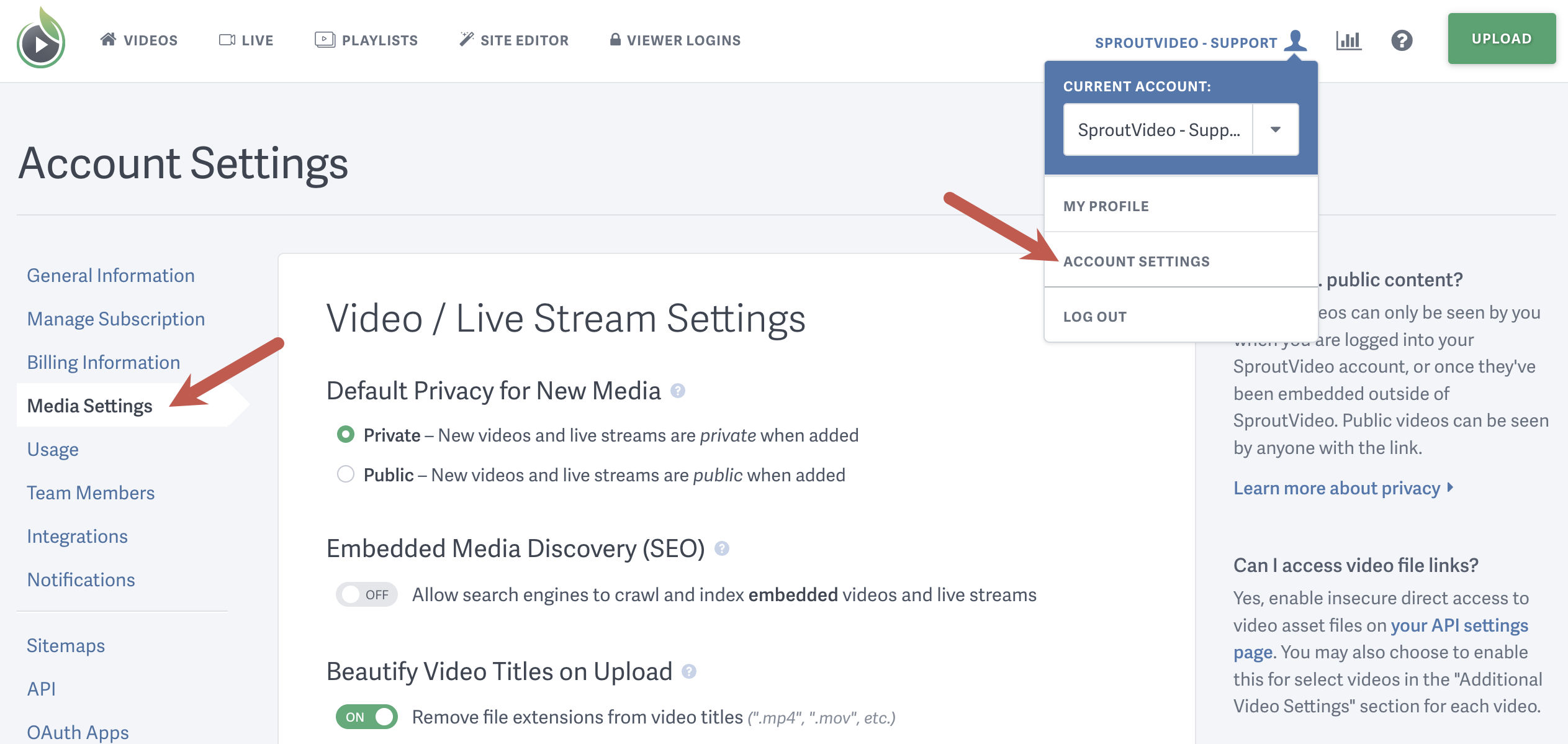
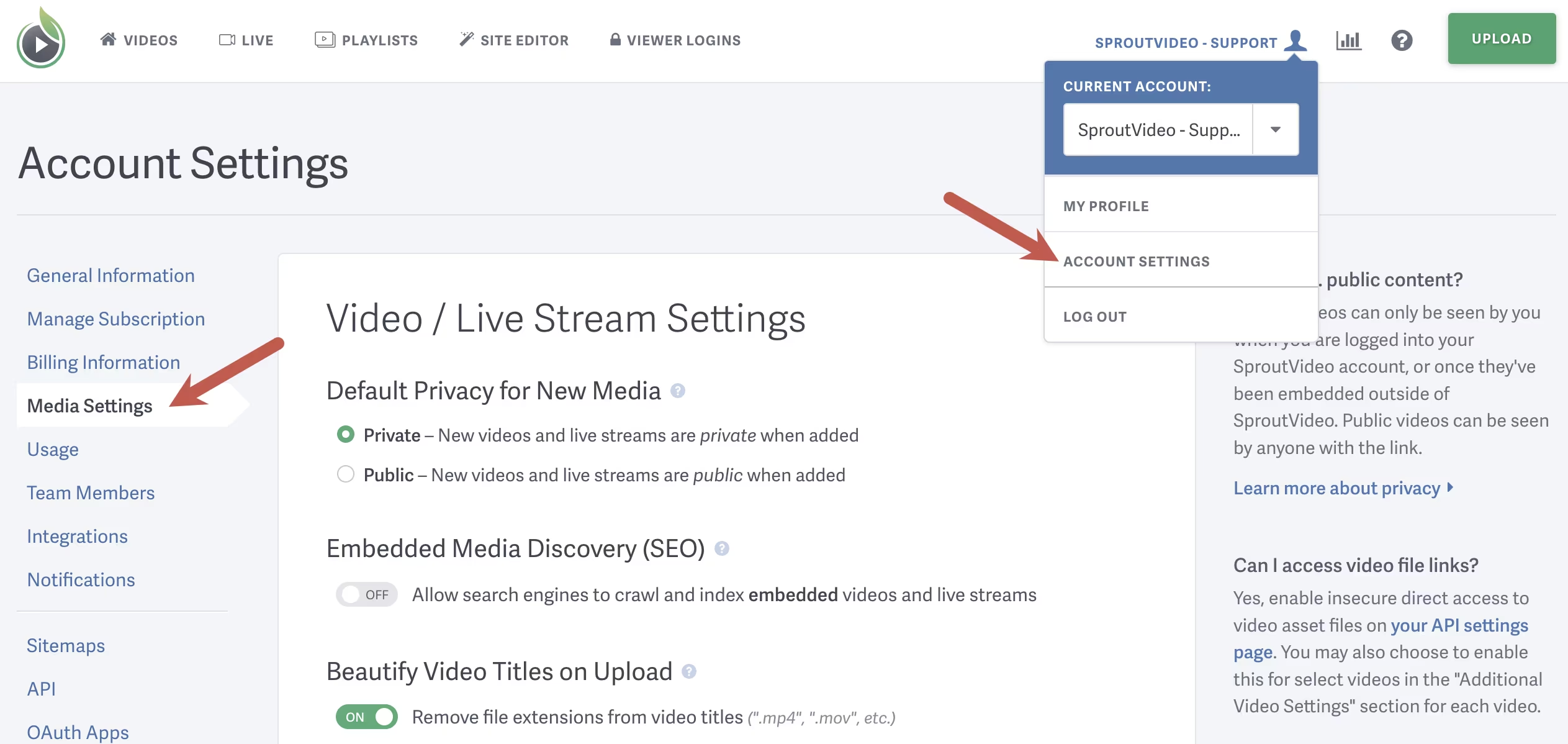
Navigate to Account Settings > Media Settings, then scroll down to the Viewer Privacy Options.
-
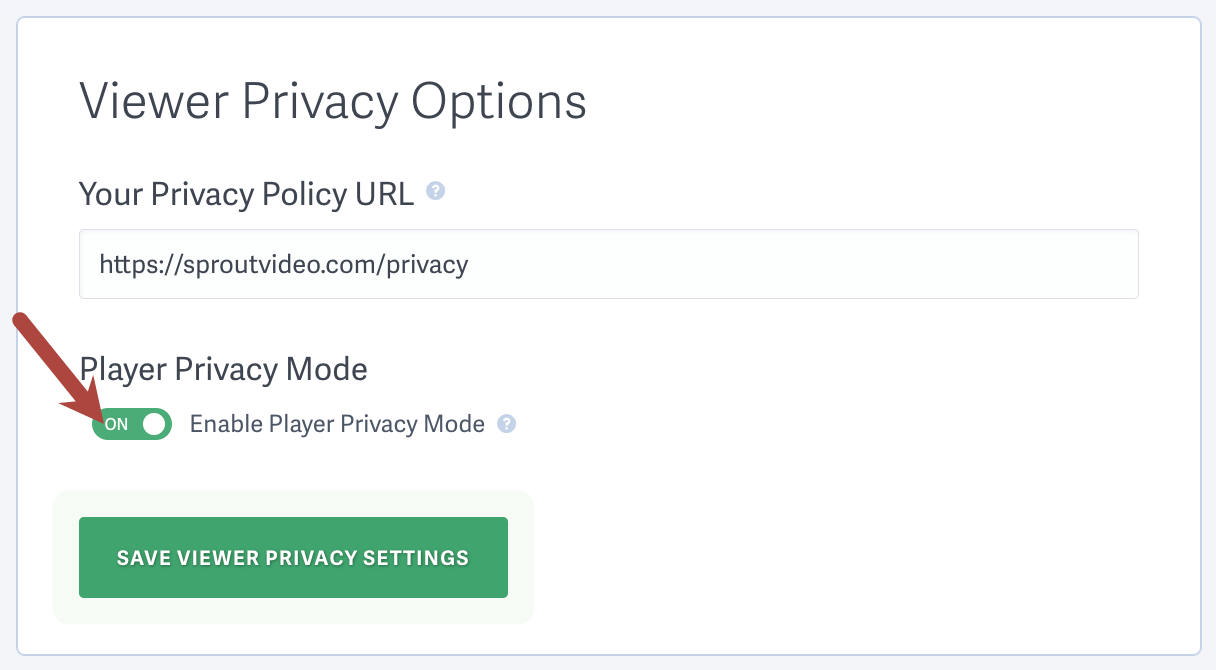
Toggle the switch for “Enable Player Privacy Mode” to the On position.
-
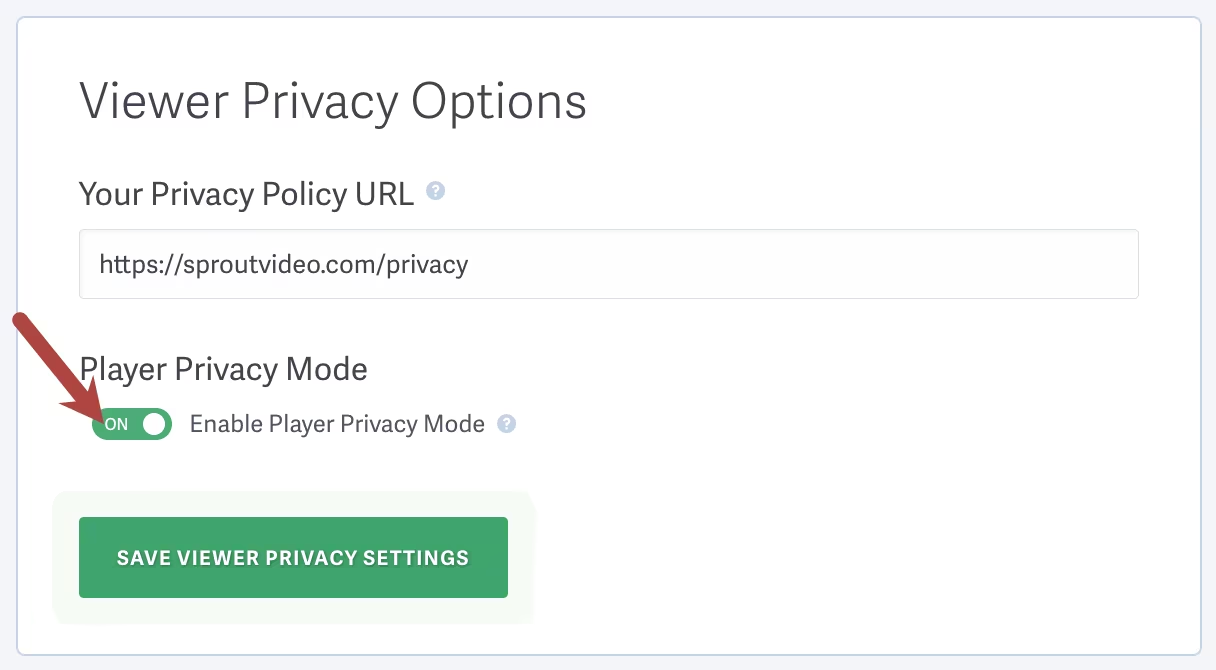
Click “Save Viewer Privacy Settings” to apply the changes.
Keeping full IP addresses in the viewer access history
The viewer access history for login protected videos records the IP address of each login, view, and download. Many customers use it to spot viewer logins that are being shared or misused, which is harder once IP addresses are anonymized. If that applies to you, you can keep the full IP address in the access history while Privacy Mode stays on for everything else.
-
On the same Viewer Privacy Options section, with Player Privacy Mode turned on, toggle “Keep full viewer IP addresses in the viewer access history” to the On position. This option is only shown while Player Privacy Mode is enabled.
-
Click “Save Viewer Privacy Settings” to apply the changes.
This setting only affects the viewer access history, and only entries recorded after it is turned on. Video engagement metrics stay anonymized either way.
Other articles in the Analytics section:

