

Posting to Patreon
SproutVideo supports sharing videos on Patreon, so you can host video content on our platform, then charge your Patreon subscribers for access to those videos.
Note: When a Patreon Mobile App user views your video they will automatically be redirected to the Patreon website in their default mobile browers where they can view the content. The viewer may need to log into Patreon again from their browser before they can play the video.
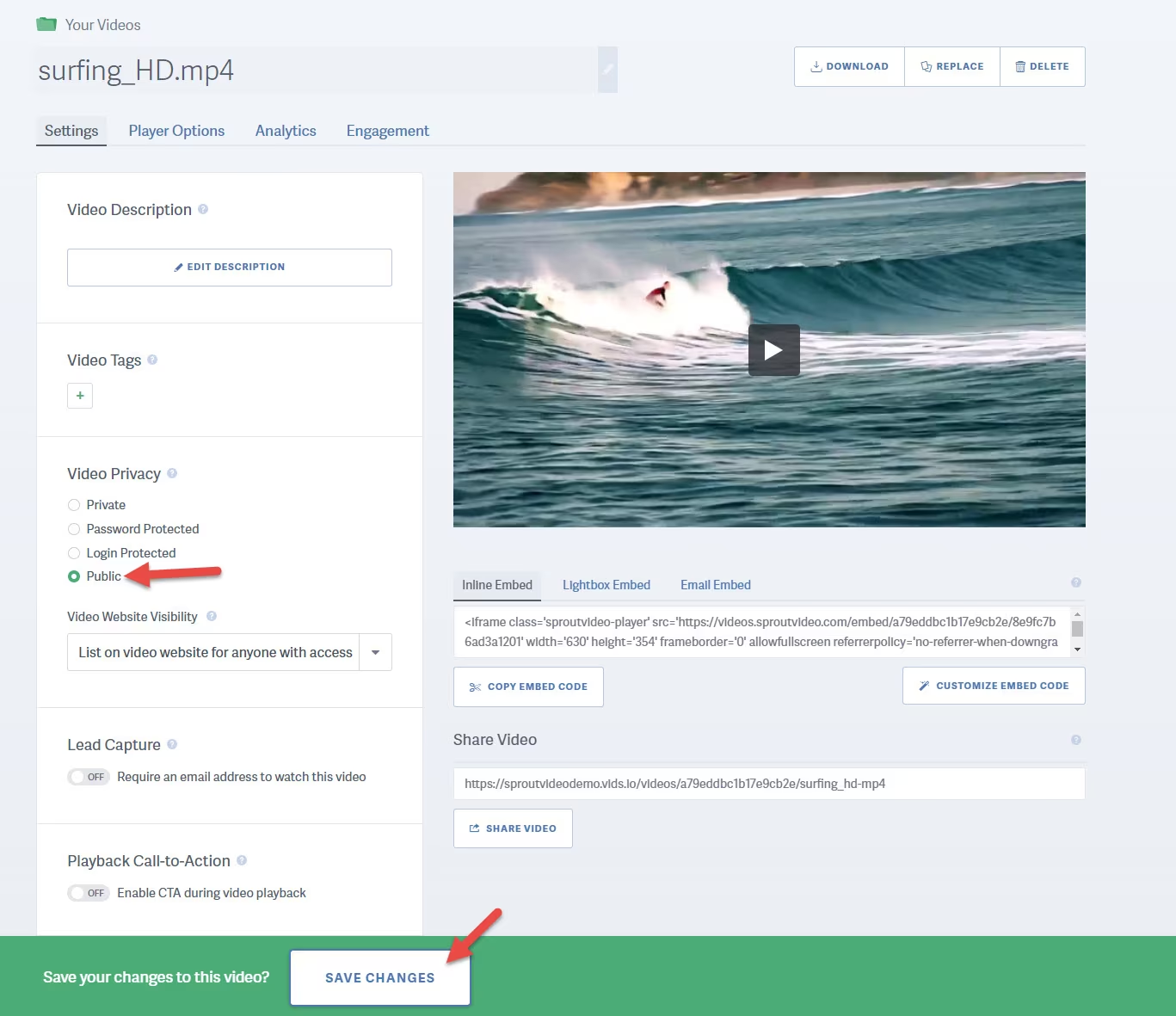
When sharing a SproutVideo URL on Patreon, it is important that you set the video to be Public before copying the Share Video URL and pasting it into your Patreon post. The video needs to be Public so that Patreon can pull the Embed code from our platform. Once the post is published on Patreon, you must set the video back to Private within your SproutVideo account so the video will only appear for a subscriber on your Patron page.
Restrict playback to Patreon (recommended)
Setting a video to Private hides its share page, but it does not limit where its embed code can play. Some websites copy and re-publish Patreon posts, including the embedded videos. If that happens, your videos can play on those sites, and that playback counts toward your account’s bandwidth.
To keep your videos playing only on Patreon, add both of these to your Allowed Domains settings:
patreon.com, www.patreon.com
Here are the steps for sharing a video on Patreon.
1) Set the video to be Public within your SproutVideo account.
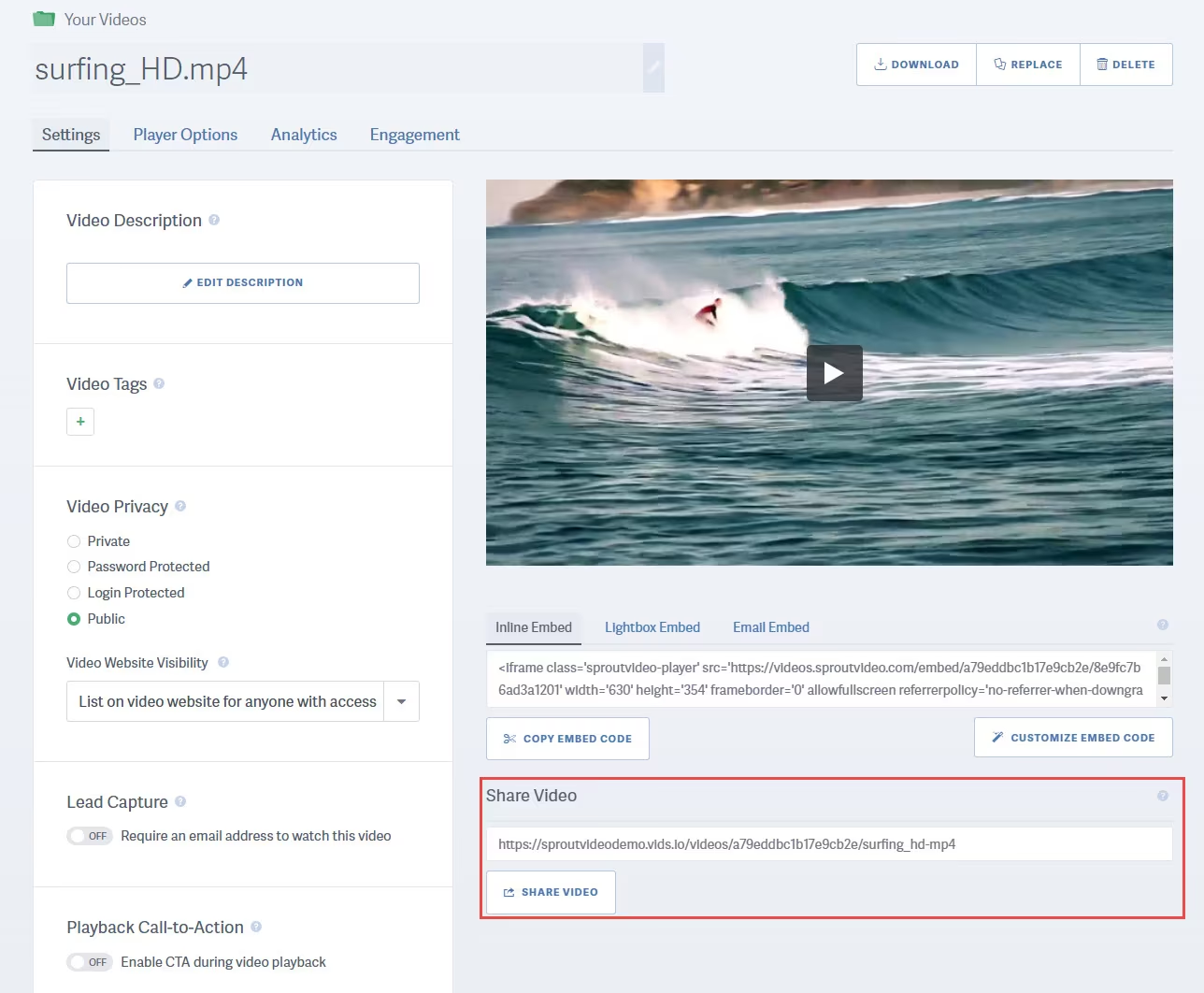
2) Copy the Share URL we provide.
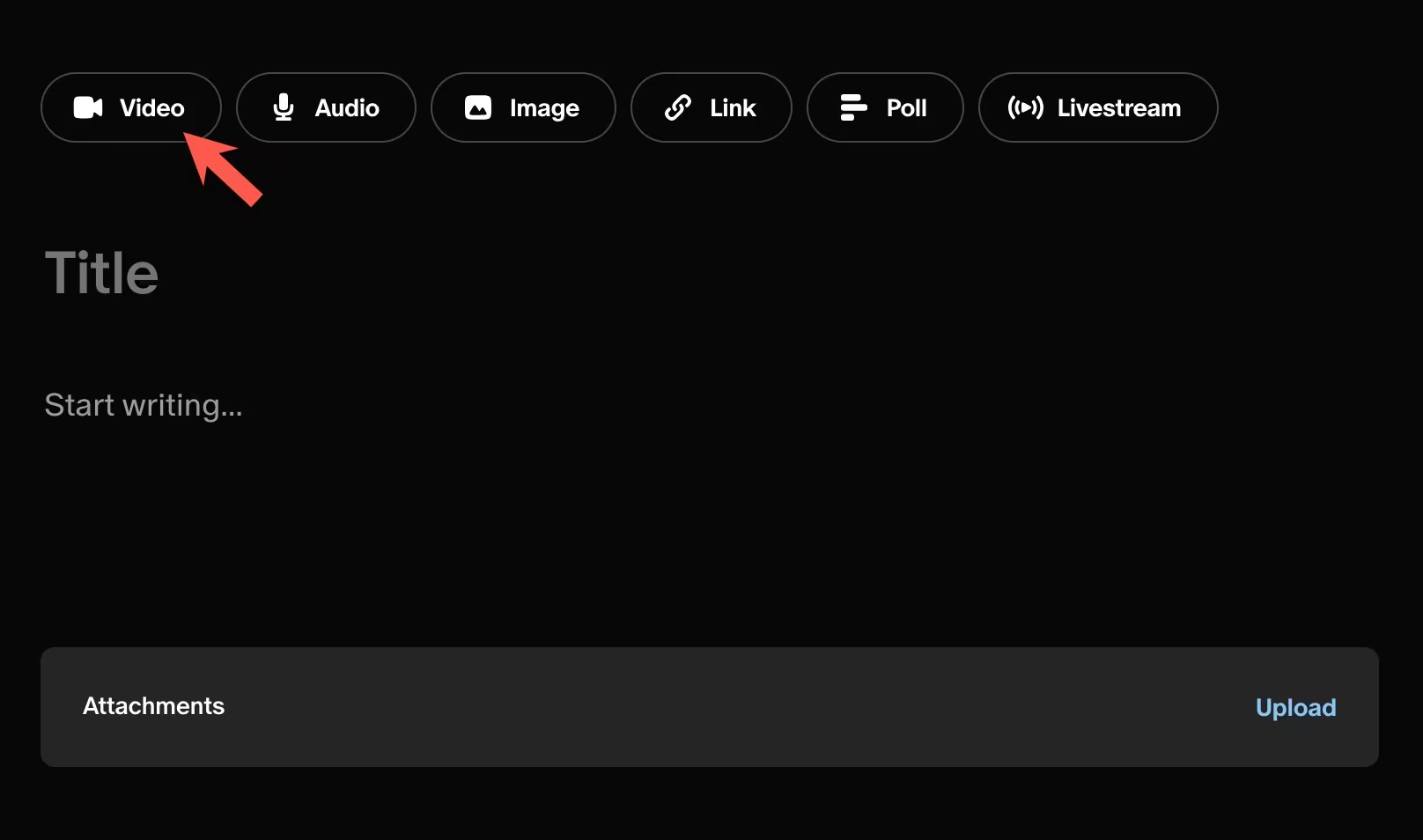
3) Create a new Patreon Video post.
4) If you have Patreon drops enabled, be sure to select “Turn off drops.”
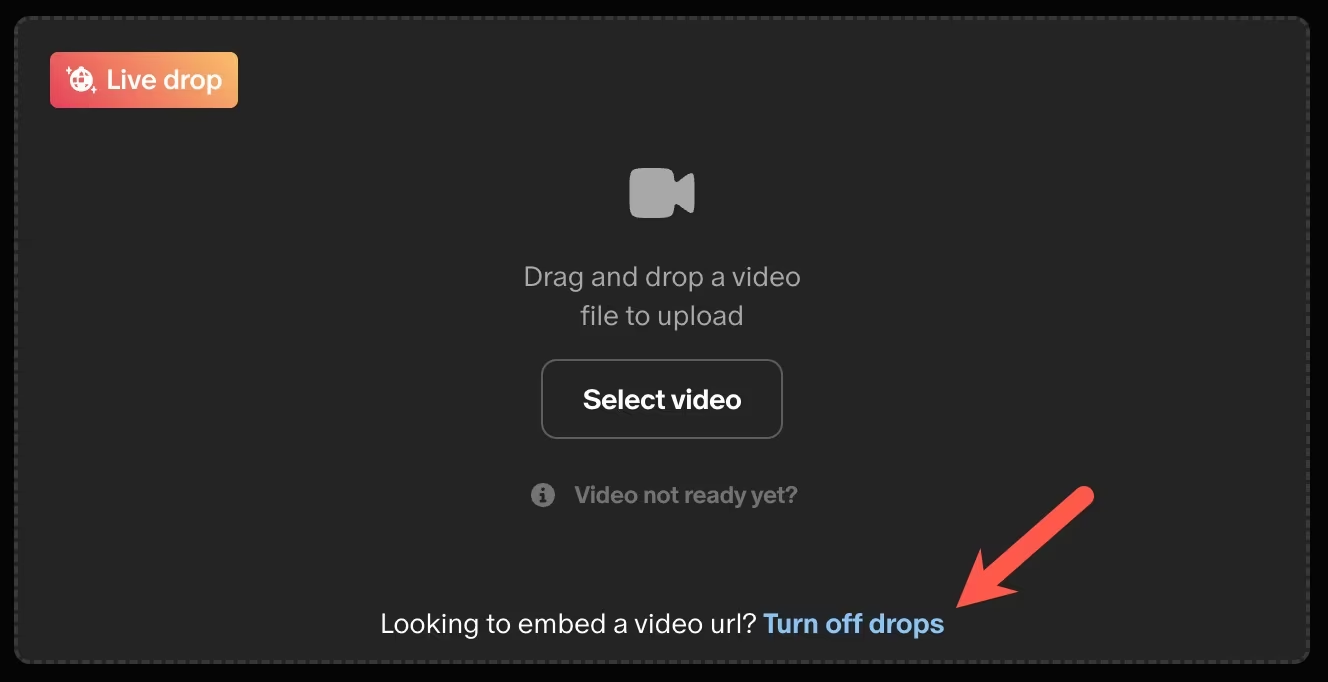
5) Select “Embed video URL.”
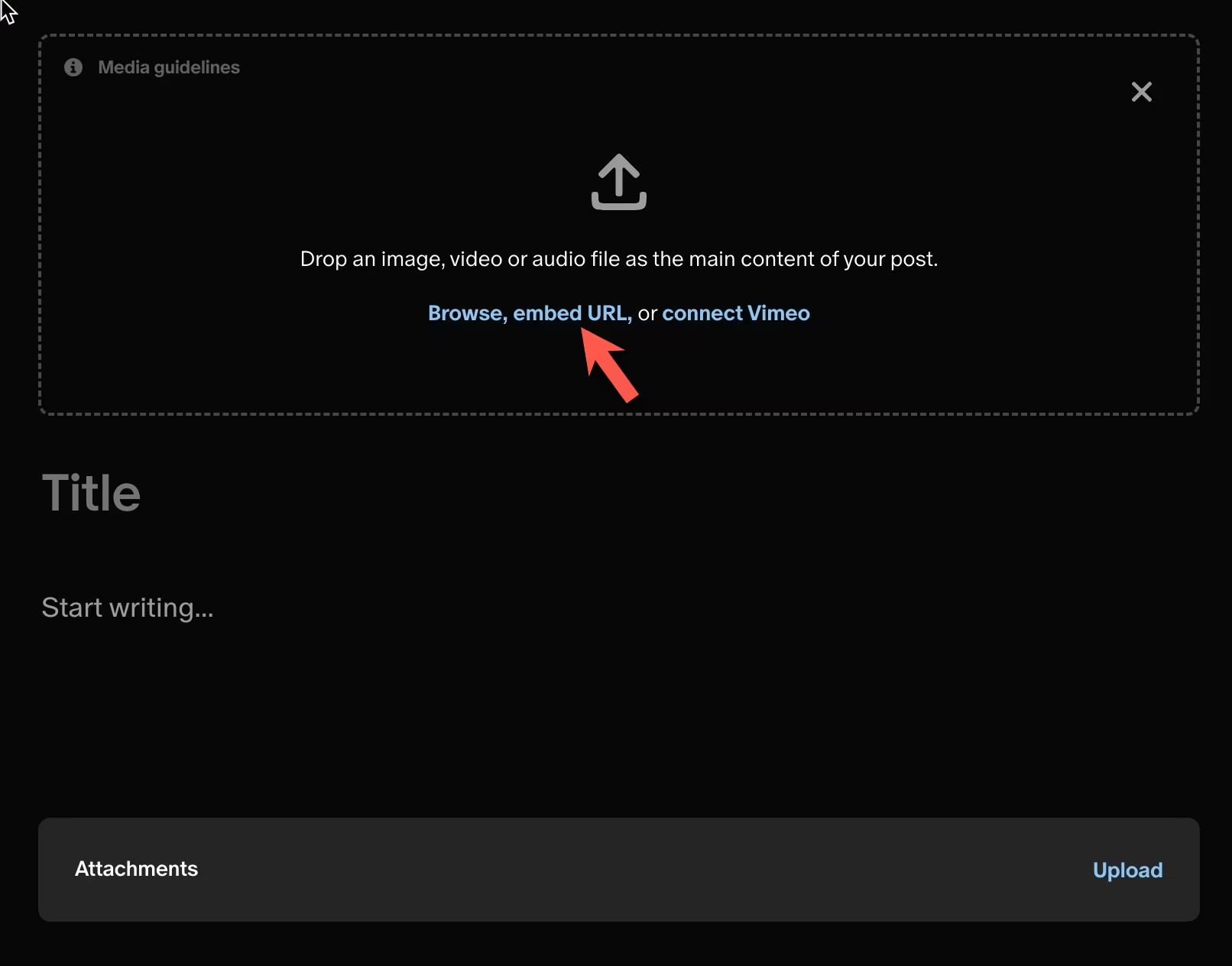
6) Paste the Public video URL copied from your SproutVideo account into the Video URL field on Patreon. Give your post a Title and Description.
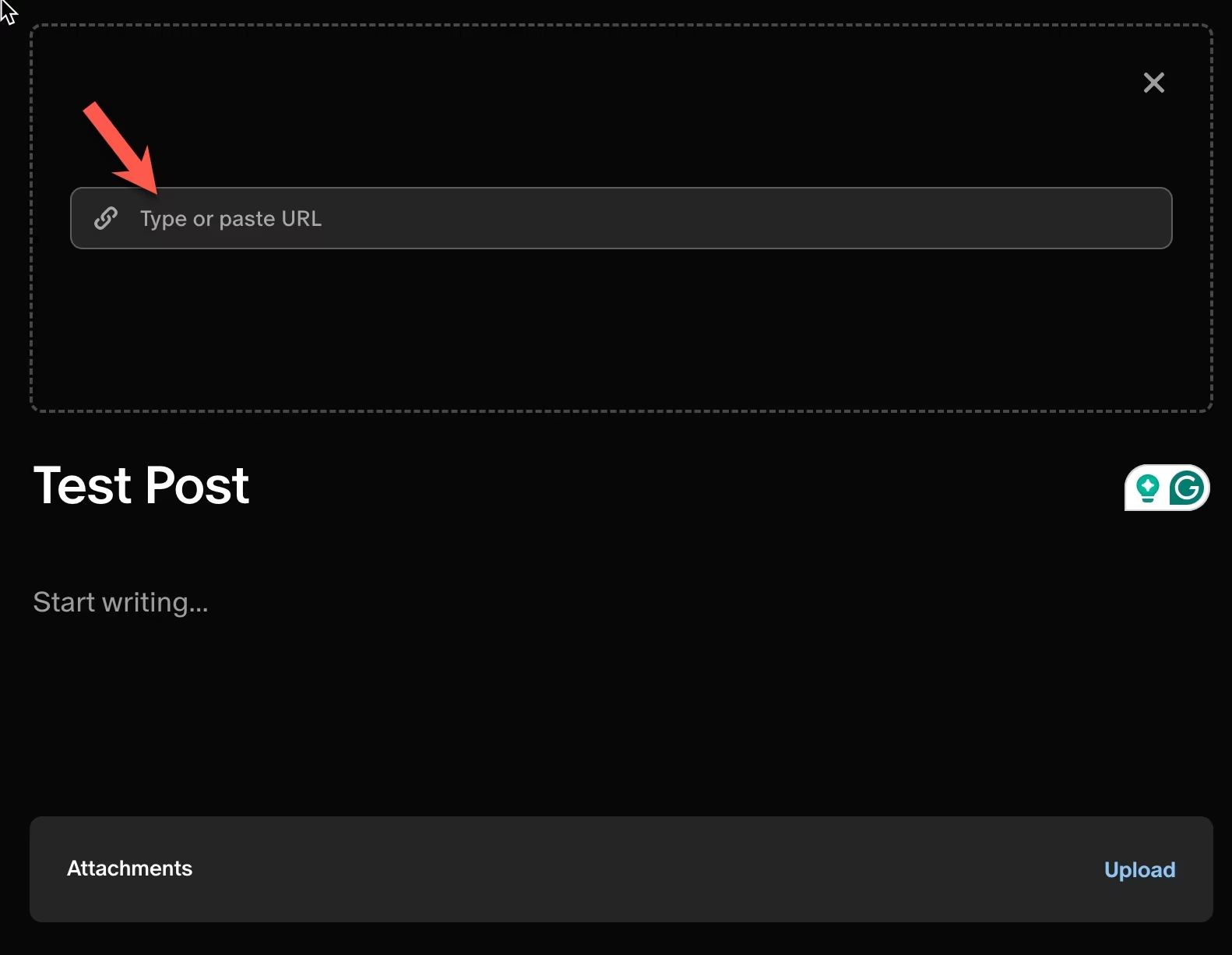
7) Publish the Patreon Post for your specific Tier.

8) Once the post is published, you must set the video back to Private within your SproutVideo account, so it will only appear to subscribers on your Patreon page.

Known Issue: Currently, there is a known issue with the top and bottom of vertical (9x16) videos being cut off on the Patreon landing page. Patreon’s support team has acknowledged the issue so we are just waiting for a fix. This only appears to affect vertical videos (9x16), so if your content is horizontal (16x9) the video will scale properly on the page. We highly recommend contacting Patreon’s Support team if you are affected by this bug.
Other articles in the Selling Videos section:
- How to Monetize Your Videos With SproutVideo
- How to Sell Your Videos with SproutVideo and MemberPress
- How to Sell Your Videos with Cleeng and SproutVideo
- How to Sell Your Videos with InPlayer and SproutVideo
- How to Sell Your Videos with LearnDash and SproutVideo
- How to Sell Your Videos on Squarespace with MemberSpace and SproutVideo
- Adding Videos to a Shopify Listing

