


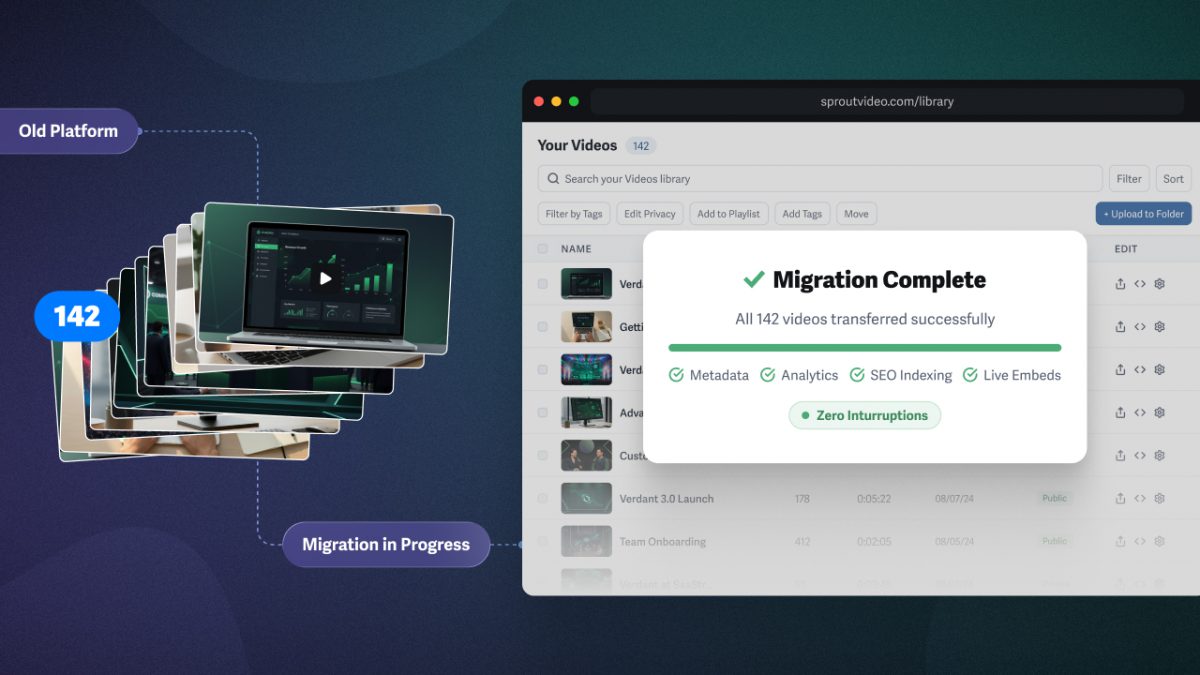

Migrating video hosting platforms takes six steps: take inventory, export your analytics, transfer your files, swap your embeds, protect your SEO, and test before you cancel.
A successful migration is invisible to your audience. Moving the video library is the easy part; it’s the information and players tied to the videos that require careful consideration. Metadata, analytics, embeds, and SEO all have to move without interrupting the viewer’s experience or eroding your site’s authority and tracking data.
This guide breaks down that process into manageable steps, so you can move your files across platforms while preserving the work built up around them. Done right, even a large migration stays under control from start to finish.
Dreading the transfer? Our team can move your entire library, metadata and all, directly into your SproutVideo account. However you migrate, this guide will help.
How to Migrate Video Hosting Platforms: The 6 Steps
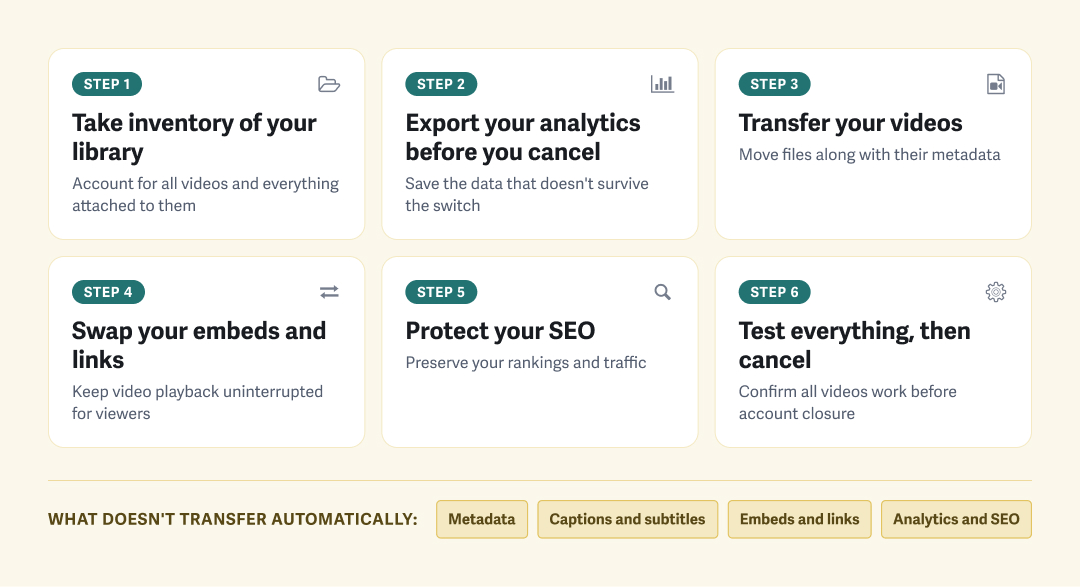
Migrating video hosting platforms requires six steps, in this order:
- Take inventory of your library: account for all videos and everything attached
- Export analytics before you cancel: save the data that won’t survive the switch
- Transfer your videos: move the files and their metadata
- Swap your embeds and links: keep video playback uninterrupted for viewers
- Protect your SEO: preserve your rankings and traffic
- Test everything, then cancel: confirm all videos work before account closure
Transferring video files from one platform to another is easier than most businesses anticipate. The real work is preservation of the attached information that make your videos findable, watchable, and measurable, because none of it comes along on its own.
What doesn’t transfer automatically when you move video across platforms:
- Metadata: Export titles, descriptions, tags, thumbnails, and privacy settings with video files to reapply them, ensuring videos are protected and findable.
- Captions and subtitles: These files (.srt and .vtt) do not move with the video files; make sure you save them to re-upload, preserving accuracy and video accessibility.
- Embeds and links: Update your embeds and links to point your players at the new host, so playback continues seamlessly once the old account is closed.
- Analytics and SEO: Export your engagement data before it disappears with the old account, and update your sitemap, canonical URLs, and schema to keep your rankings.
These are the breakpoints where your audience would notice disruptions. The steps below outline how to migrate your videos successfully and invisibly.
1. Take Inventory of Your Library
Taking inventory is the foundation for a seamless migration and also serves as an audit of your video library. Even for companies using an API to transfer most of the metadata, the inventory is the source of what exists, and the quality assurance (QA) sheet that will help you test everything at the end.
Create a spreadsheet. For every video, record:
- Title and description
- Tags and categories
- Privacy setting
- Access controls and security
- Player customizations
- Thumbnail (link to URL in file drive)
- Caption file (.srt or .vtt)
- Embed locations (webpage, email, portal)
Some columns — player customizations or privacy settings, for example — may be the same across videos for some businesses. You can add or remove columns, but err on the side of including too much information, as this will become your video migration checklist.
The last column, embed locations, is arguably the most important because anywhere the video appears that isn’t updated will become a dead player post migration.
This step is also an opportunity to reduce your video library by deleting unnecessary videos, eliminating duplicates, and creating an archive list. That archive list lets you split the migration into two priority waves: your active, viewer-facing videos then the archive.
2. Export Your Analytics Before You Cancel
Analytics collected through a video hosting account do not transfer with the move. Your video data, such as view counts and engagement metrics, is tied to the platform, so that information is lost once the account is closed.
There are two types of data to save, and each requires a different method:
- Export video data: Download a CSV record for all video data. This should include analytics data (play rate, average engagement, and more). Depending on the platform, it may include helpful metadata, such as the video title, privacy setting, and duration.
- Capture visual data: Save screenshots of platform-rendered visuals, such as retention graphs and heatmaps that show where viewers replay and drop off. These can’t be exported with the video data, so grab the images you want before closing the account.
You cannot carry analytics history forward; you can only save the previous data for your records. Analytics will start fresh on your new platform.
The API is another way to export data and may be the ideal path for large libraries. Either way, save your data first, long before you cancel the account.
3. Transfer Your Videos
There are three methods of transferring videos across platforms. Choose the migration method that fits your business, which is often dictated by library size:
| Small (up to 50) | Direct export and upload | Few enough videos that handling them directly is the least hassle |
| Medium (50–500) | Cloud-storage import | Move a large batch at once instead of one upload at a time |
| Large (500+) | API | Migrate thousands of videos without manually reentering details |
How long the migration takes depends heavily on total file size and bandwidth, rather than on the strict video count. Smaller libraries may take as little as a day, while large libraries can be a week-long project.
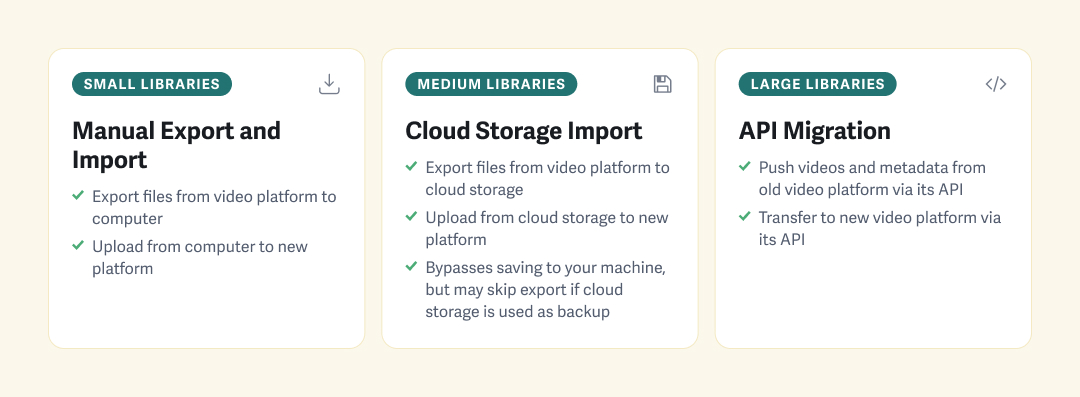
Small Libraries: Manual Export and Import
Download the source video file (or highest available resolution) from the old host, then upload each to the new platform.
Look for a platform that offers resumable uploads, so the upload can resume without losing its place if your internet connection is interrupted. As you add videos, use the inventory to reapply the details for each: title, description, tags, privacy, thumbnail, and caption file.
Regardless of library size, some workflows are better suited to cloud importing, for example, if you already keep your original files in cloud storage.
Medium Libraries: Cloud Import
Skip the manual upload process with cloud storage import. From your old video host, download your source files (or the highest available resolution) into Dropbox, Google Drive, OneDrive, or Box. In the new host, connect to your file drive and select the videos for batch import.
Resumable uploads matter here as well, to ensure upload progress is not lost if the internet connection is interrupted. Once the videos are added, the same process applies: use your inventory to reapply metadata, privacy settings, and captions.
Large Libraries: API Migration
For large libraries and companies with developer resources, the API path significantly reduces the manual transfer work. The migration runs as a scripted job: your script calls the APIs from both hosting platforms, pulling video files and metadata from the old host and pushing them to the new one. Titles, tags, and privacy settings are all set in a single call, so metadata is applied during upload rather than reapplied afterward.
Some information may not transfer seamlessly due to variations in platform naming conventions, and captions generally require a separate API call. Double-check that all videos, metadata, and other information moved across accurately, using your inventory.
4. Swap Your Embeds and Links
Every embedded player and shared link, wherever they appear, needs to be replaced. A missed embed is exactly how a viewer ends up staring at a dead player.
While your old account is active, nothing will appear broken because the embed code is still pointing to the hosted file. That works to your advantage: you can replace every embed and shared link, confirm the replacements work, and never interrupt the audience. This is the most tedious step in migrating video hosts. But it’s also where the inventory you made in step one becomes worth the time investment.
Work through the embed-locations column one by one, replacing the embed code or shared link wherever the video appears, including web pages, emails, scheduled posts, help docs, apps, and more.
5. Protect Your SEO
Preserve the authority and traffic you’ve built by making sure search engines can follow your content from the old host to the new one. When a video lives on a page you own, only the embed code changes in the migration, not the page URL, which means most of your video SEO is already protected by the embed swap. Here’s how to handle the rest:
- Video sitemap and canonical URLs: Once your videos are on the new host, create an updated sitemap so search engines can quickly find your library at its new location, and set each video’s canonical URL to the web page where its embedded.
- Video schema: Update any video schema to point at the new host to help search engines confirm where videos live. This powers rich results and AI-based answers.
- 301 redirects (only if a page moves): If you’re retiring or restructuring your video pages during the migration, set a 301 redirect from the old page URL to the new one to preserve its authority. If your pages are staying put, there’s nothing to redirect.
Keep in mind that the page a video lives on carries its own SEO, separate from the video. The more of those pages you own, the more of your authority and traffic you can preserve. Rankings that lived on pages you don’t own, such as the old host’s video pages, cannot be carried over. The realistic goal is to protect what’s yours and rebuild what isn’t.
6. Test Everything, Then Cancel
The final step is quality assurance (QA). Before canceling the old account, verify your video library is properly set up on the new platform.
Inventory spreadsheet in hand, confirm that each video plays as expected, renders captions, has the correct privacy settings and access controls, and that embeds load on your live pages. View these videos from outside the account as well to make sure they perform normally for viewers.
A complete review is ideal, but for large libraries where checking each video individually is impractical, focus on privacy settings and embed codes. Embed codes are especially important to pay attention to, since you won’t run into a dead player until after your old account is closed.
This QA is your best opportunity to catch mistakes before your audience does, while the old account is still an active safety net.
Migrating to SproutVideo
If you’re moving to SproutVideo, we’ll handle the migration for you. SproutVideo offers hands-on migration assistance from any platform.
As long as your old plan is active, our team pulls everything associated with your videos directly into your SproutVideo account:
- Videos
- Metadata
- Captions/Subtitles
- Folders & Tags
- Thumbnails
Let us take care of transferring your videos; no manual downloading, re-uploading, or rebuilding your video library from scratch. You skip the most overwhelming steps entirely and pick up from there: swap your embeds, preserve your SEO, and test before you cancel the old account.
“This saved us hours, if not days, of manual downloading and uploading or tinkering with scripts. The support team’s helpful attitude, high availability, and responsiveness are remarkable and made the transition to their service surprisingly easy.”
Prefer to move the library yourself? Every method from this guide works with SproutVideo: direct upload with resumable uploads, cloud import, or API migration.
Reach out before you start or if you hit a snag; that’s what the team is here for.
Try for Free
Ready to Make the Move?
Try SproutVideo free and put every tool you rely on to the test before you commit.
- Import directly from Dropbox, Google Drive, OneDrive, or Box
- Resumable uploads and a REST API for libraries of any size
- Human support to help you plan and troubleshoot the move
- Predictable pricing, with tiers that grow as you do
30 days free. No credit card required.
Video Migration FAQ
How long does a video migration take?
A video migration usually takes anywhere from a few hours for a small library to a few days or a week for a large one. The duration is determined by the total file size and upload speed, rather than by the number of videos. For example, 50 hour-long, high-resolution files take much longer to move than 50 two-minute, low-resolution clips because there is more data to move.
For large libraries, the API path is the most efficient. It transfers your videos and their metadata in a single automated pass, so you’re not moving thousands of files or re-entering details.
If you’d like assistance with the transfer, SproutVideo can move your video library, including videos, metadata, captions, folders, tags, and thumbnails, directly from your old, still-active hosting account.
Will my videos go down during a migration?
No, your videos will not go down if you keep your old host active until the migration is complete and verified. This order of events ensures your current videos remain playable during the migration, so your audience doesn’t experience an interruption. Once your videos are available on the new platform, simply swap the embed codes and the change will be invisible to viewers.
This is why ensuring the migration is successful before canceling the old account is essential: the old platform serves as a safety net while you confirm everything is running correctly on the new one.
Will I lose SEO when I switch video hosts?
You do not lose SEO when switching video hosts, unless your videos lived on pages the host owned instead of your own. When videos live on pages you own, those page URLs don’t change just because you migrate; only the embed code swaps. Your pages keep their authority and rankings as long as you replace the embeds and update your video sitemap and schema to point at the new host.
For example, if some of your videos are hosted as standalone pages on YouTube, rather than embedded on pages you own, switching hosts won’t carry over any SEO value those YouTube pages built, since you never controlled that URL to begin with.
What happens to my analytics when I migrate?
Analytics are not transferable when switching video hosts. Because this data (views, engagement, and audience metrics) is tied to your old host, it disappears once that account closes. For this reason, it’s important to export everything for your records before canceling. Your new platform starts its own count from the first play on the new player.
Data like plays, watch time, and average engagement can be cleanly exported as CSV. However, platform-rendered visuals like retention graphs and heat maps cannot be exported. Capture screenshots of any data you want to save before you close the account.
Do video captions and subtitles transfer when you switch hosts?
Captions and subtitles do not automatically move with the video files. You can transfer them manually by exporting and uploading the .srt or .vtt files, or move them with your videos in a single automated pass through the API or with SproutVideo migration assistance.
If some videos lack captions, many platforms can auto-generate them, allowing you to complete the migration with greater video accessibility than before.
Will my storage usage change when I switch platforms?
Likely, yes. Storage usage doesn’t carry over one-to-one between platforms, because each host encodes and stores files differently. The only reliable way to know is to estimate your usage on the new platform.
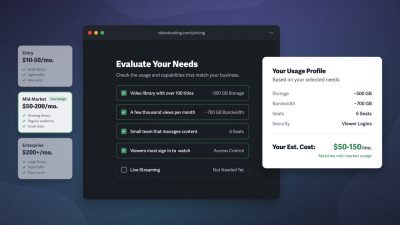
On SproutVideo, your video count, average length, resolution, and expected monthly plays give you an accurate estimate. You can estimate it yourself or get an estimate via our support team.
Try SproutVideo Free for 30 Days
Test every feature with your own videos before you commit, no credit card required.

— UK Hotel Group