


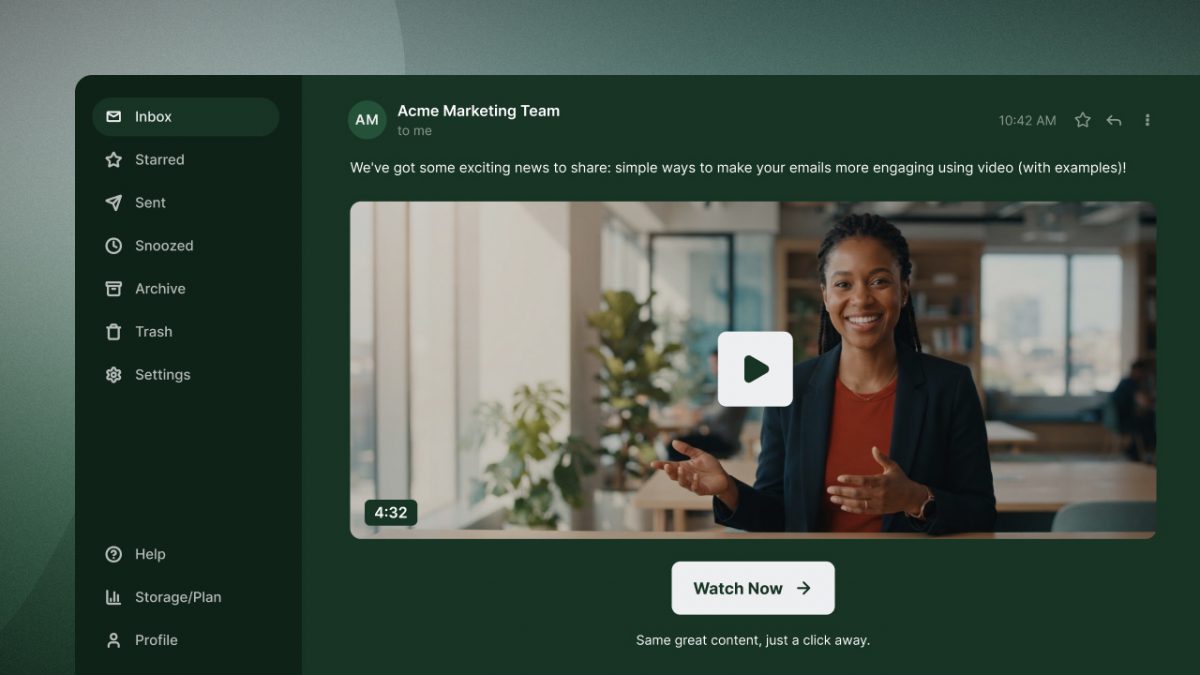

Most email apps, including Gmail and Outlook, don’t play video inside the email. To add a video in an email, share a static or animated video thumbnail that links to your video landing page.
Email marketing earns an average of $36 per $1 spent, according to Litmus. But how do you get more from video emails? We asked marketing experts and business owners what they tested to get more readers watching. Their tests showed lifts of up to 31.2%.
With a video host, you can also collect data on every contact who watches. The video holds the product demo or sales pitch, so contacts who click through and watch the full video are warm leads. For B2B teams, this turns video in email into a sales funnel.
Learn three ways to add video to email, dig into expert-tested results, and track who watched after they click.
Can You Embed Video Directly in an Email?
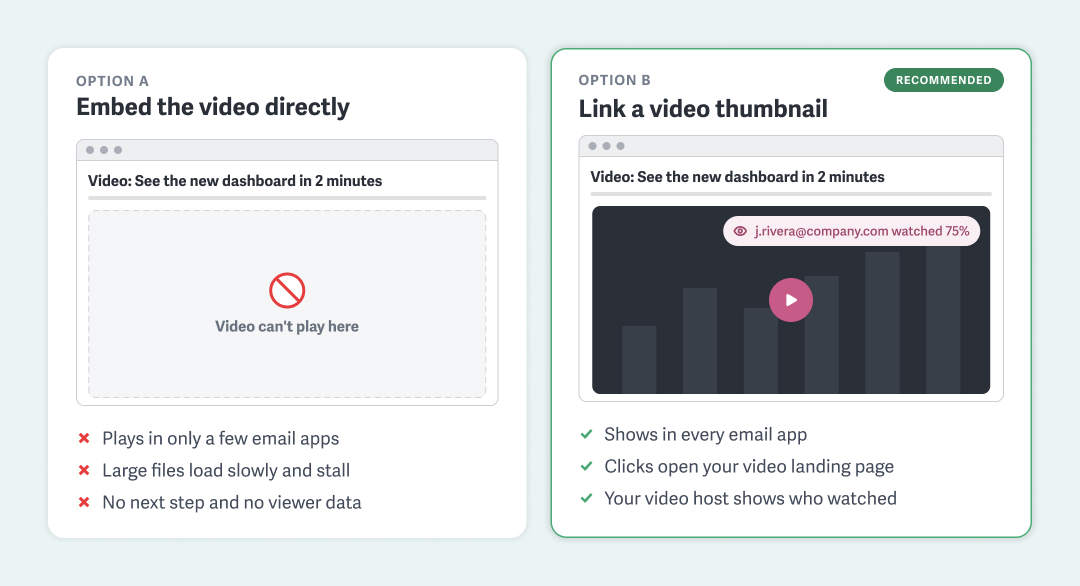
Yes, but only in some email apps, such as Apple Mail. You can add an HTML5 video to an email, but most email apps, including Gmail and Outlook, block video playback in emails due to potential security risks (such as phishing scams). Where video does play, large video files can load slowly and stall playback. That’s why we don’t recommend sharing a video file directly in an email; instead, use a thumbnail image or GIF and link to your video.
Does Video Play in Gmail, Outlook, and Apple Mail?
There are many email clients, but the vast majority of opens occur in Apple Mail, Gmail, or Outlook.
- Apple Mail: Yes, on Mac, iPhone, and iPad.
- Gmail: No. Gmail shows your fallback image instead.
- Outlook: No, in nearly every version.
Even in Apple Mail, embedded video doesn’t give viewers the next step and leaves you with no insight into who watched or how much they watched. Plus, you still need a fallback image for everyone reading elsewhere.
For less common apps, see Can I Email for the full list of clients.
3 Ways to Embed Video in Email
You can embed a video in an email in three ways: with an animated GIF preview, a static thumbnail with a play button overlay, or an email embed code from your video host.
Each method links your thumbnail to the landing page where your video plays.
The main difference between them is what you can track: a GIF or static thumbnail tells you who clicked, while an email embed code from a host like SproutVideo also shows which contacts watched and how much they watched.
“Many email clients don’t fully support embedded videos, which can lead to deliverability issues, slow load times, or playback failures. A well-designed thumbnail grabs attention and encourages recipients to click without risking technical hiccups.”
1. Animated GIF Video Thumbnail
An animated GIF preview is a short, looping clip from your video that links to your video landing page. It brings motion into the inbox without embedding the video itself.
GIFs display in nearly every email app. The exception is Outlook for Windows 2007–2019, which shows only the first frame, so choose a first frame that works on its own. To see how animated thumbnails perform against static ones, see the thumbnail test below.
To use a GIF thumbnail:
- Upload the GIF to your email marketing platform and insert it into the email.
- Hyperlink the animated poster frame to your video’s landing page.
- Ensure the video and landing page are ready for traffic, then schedule the email.
Keep animated poster frames under 1 MB so your email loads quickly and displays properly.
2. Static Thumbnail With Play Button Overlay
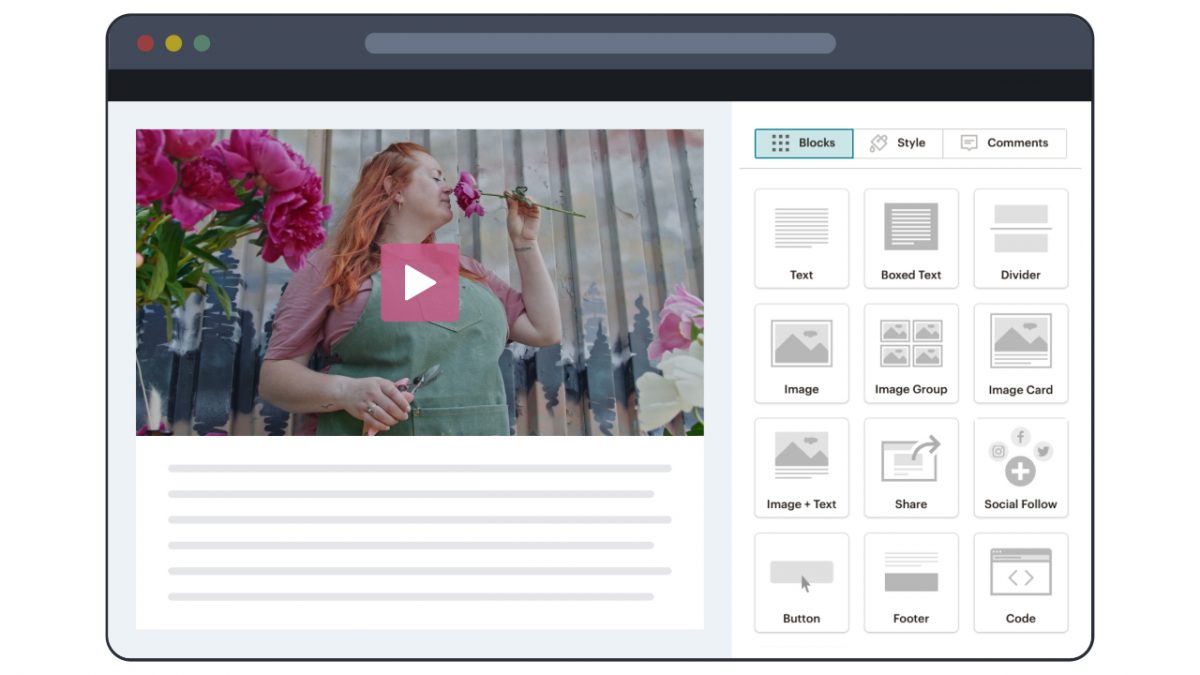
A static thumbnail is a still image, usually with a play button overlay, that links to your video landing page. Static images provide faster loading times and improve accessibility for readers sensitive to motion. Certain brands may also prefer the stark professionalism of static images.
“With the play button overlay, the video thumbnail looked like a directly embedded video, even though it linked to our site. That small change increased video clicks by 31.2%.”
To use a static thumbnail:
- Add a play button overlay so readers know the image is clickable. You can do this in your preferred image editor or using your video host.
- Insert the image into your email and link it to your video landing page.
3. Email Embed Code From Your Video Host
An email embed code is the HTML you grab from your video host to add directly to your email marketing platform. This embed code adds your video’s thumbnail or animated poster frame to your email, with a link to your video. Because the host generates the preview, you don’t need to create a GIF or add a play button overlay in other software.
To use an email embed code:
- Generate a custom email embed code through your video host.
- Paste the code into a custom HTML block in your email.
Using a responsive embed code also ensures your video thumbnail scales to fit every screen. Your email platform determines whether manually added thumbnails resize. SproutVideo email embed codes are responsive by default.
A SproutVideo email embed code also lets you track which email contacts watched your video and how much time they spent watching. See how in How to Track Who Watched Your Email Video.
5 Tests to Improve Video in Email Marketing Results
To improve video-in-email results, A/B test one element at a time and compare results. Repeat each test to confirm the result holds. Once you know what works, the results become standards.
“Customers rarely click just because a video is there. They click because the email makes them want to see more. The trick is writing the email as if the video doesn’t exist. If the copy can’t sell the idea on its own, the video won’t save it.”
The five simple tests below come from agencies and small businesses that ran them in their own campaigns and shared them with SproutVideo in early 2025. Use them as inspiration for your own tests, rather than industry benchmarks.
Here’s what experts found when they tested video in email:
- 22% more opens from adding “Video” to the subject line (Bright Force Electrical)
- 18% more engagement from adding intro copy before the video (Medical Anti-Aging)
- 21% higher click-through rate from a GIF thumbnail versus a static one (InboxArmy)
- 15% higher click-through rate from a specific CTA (Pro Coffee Gear)
1. Put “Video” in the Subject Line
A subject line that mentions video tells readers what to expect before they open it and sets your email apart in a crowded inbox.
“When the subject line included ‘Video: How to Handle Electrical Emergencies,’ the open rate jumped by 22% compared to previous emails on the same topic. This increased engagement and led to a 15% rise in service inquiries that month.”
Test to run: Send the same email with and without “Video” in the subject line. Compare open rates, then compare click-through rates to see whether the extra opens become views.
2. Add Intro Copy Before the Video
Many marketers put the video at the top of the email. A few sentences of context first can give readers a reason to click.
“When we placed a short introduction first and then the video, engagement went up by 18%. That small shift gave people context before they watched, making them more likely to take action.”
Test to run: Create an A/B test where Version A opens with the video thumbnail and Version B opens with two or three sentences of context, then the thumbnail. Compare click-through rates.
3. Test Animated vs. Static Thumbnails
Motion captures attention, encouraging readers to pause and absorb more of your messaging. Animated or static, your thumbnail should set video expectations at a glance.
“[An animated thumbnail with play button overlay] tricks the brain into thinking, ‘This is a video,’ when it’s just a lightweight GIF. When clicked, it takes you to a landing page where the video plays: no rendering issues, no lag. I tested this animated poster frame against static thumbnails and saw a 21% lift in click-through rate.”
Test to run: Use the same moment in your video for the GIF and static thumbnail to create the cleanest A/B test. Compare click-through rates.
4. Find Your Best Thumbnail
Beyond choosing between animated and static options, the frame you feature determines whether readers click. Pull several strong moments from your video and test them against each other.
“I always recommend choosing a clear, high-contrast image with a strong focal point, whether it’s a person, a product, or an eye-catching scene.”
Test to run: Keep everything else in the email the same, change only the thumbnail, and compare click-through rates.
5. Write a Specific CTA
Don’t assume readers know the next step. A specific CTA tells them why they should click.
“We ditched the generic ‘Watch Now’ CTA; instead, we tried ‘See How We Dialed In This Brew’ to tie it to our story. Click rates jumped 15% when we got specific.”
Test to run: Compare “Watch Now” against a compelling CTA that describes what the video shows or why they should click. Measure click-through rate.
None of these tests measures how readers engaged with the video after the click. That data lives with your video host; see the tracking section next for how to capture it.
How to Track Who Watched Your Email Video With SproutVideo
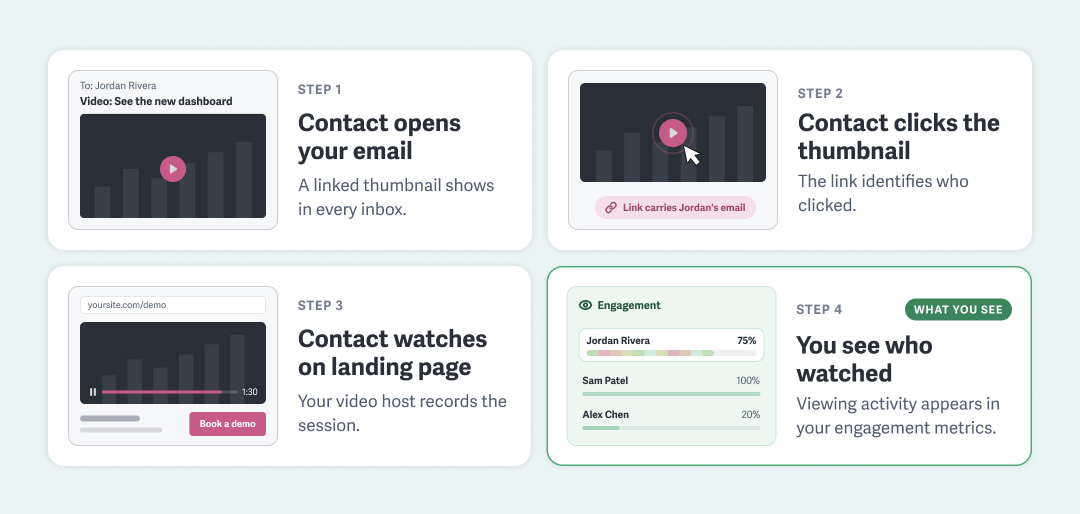
Your email marketing platform shows who opened the email and clicked on your video. A video host with engagement data, like SproutVideo, shows you who watched the video and how much of it they watched. When your email links to your video landing page with one of the methods below, each viewing session connects back to the contact who clicked.
See Which Contacts Watched Your Video
1. Use an Email Embed Code
The simplest way to see who watched your video from an email is to use a SproutVideo email embed code. When customizing the embed code, select your email provider. When a contact clicks your video thumbnail and watches the video on the landing page, SproutVideo links their email address to their viewing activity in your engagement metrics.
The email embed code works with more than 25 email marketing platforms, including HubSpot, Mailchimp, Klaviyo, and Marketo.
2. Add Merge Tags to Your Landing Page Link
If you link your own GIF or static thumbnail, or your email provider isn’t on the list, you can track viewers by adding merge tags to your landing page link. Your email platform provides these tags to fill in each recipient’s details. Merge tag formats vary by platform, so check your email provider’s documentation for the exact syntax. This help doc walks through the setup.
Sync Engagement Data with HubSpot, Zapier, or Make
The HubSpot integration syncs watch milestones (1%, 25%, 50%, 75%, and 100%) to each contact record. You can then use this data in your CRM to determine warm leads and create segmented follow-ups. For other platforms, connect SproutVideo through Zapier or Make.
For example, with SproutVideo’s HubSpot integration, you can trigger a sales task when a contact reaches 75% of a demo video, or send a follow-up email to contacts who stopped before the halfway point.
All marketing integrations are included on every SproutVideo plan.
Put Viewer Data to Work
Use this data to see which videos and video lengths hold attention. Once you know who watched and how much, each team can act on it:
- Marketing evaluates leads by watch depth and segments lists for follow-up campaigns.
- Sales uses engagement data to prioritize leads and personalize sales pitches.
- Support reaches out to new customers who never watched the onboarding video.
Video in email works best when the email earns the click and the landing page does the rest. Test what gets readers to click, then use what they watch to decide who to follow up with and what to send next.
Try for Free
See Who Watches Your Email Videos
Discover the warmest leads from your next video email campaign. Try SproutVideo free to see who watched.
- Generate email embed codes for more than 25 email platforms
- See which contacts watched and how much in your engagement metrics
- Sync watch milestones to HubSpot on every SproutVideo plan
- Connect viewer data to other platforms through Zapier or Make
30 days free. No credit card required.
Video in Email Marketing FAQs
What types of emails work best with video?
Video works best in emails where watching is the goal, or where the video drives a conversion on your landing page. This might include:
- Nurture sequences
- Webinar invites
- Demo replays
- Sales walkthroughs
- Onboarding and training
- Feature updates
In all cases, the video should provide value that copy alone can’t.
Can video autoplay in an email?
Not reliably. Gmail and Outlook don’t play video in the email at all, so there’s nothing to autoplay. For motion that starts on its own, use an animated GIF thumbnail. It plays automatically in nearly every email app and links to the full video on your landing page. Keep the loop short, a few seconds, so it catches the eye without distracting readers.
Does adding video to an email hurt deliverability?
Not if you link to it. Deliverability problems arise when attaching video files or embedding them directly in the email, which inflates message size and can trigger spam filters or size limits. A linked thumbnail keeps the email light.
Keep animated GIFs under 1 MB, add alt text, and pair the thumbnail with enough copy that the email doesn’t read as image-only.
How do you send a private or confidential video by email?
Link your email thumbnail to a video that requires a password or login to watch. With SproutVideo, login protection gives access only to the specific people you allow, and SproutVideo automatically tracks each viewer’s activity by their email address.
Password protection also works for simpler sharing. See how to secure and protect your videos for every option.
How do you make a video in an email accessible?
Make your video emails accessible by adding alt text to your thumbnail. Alt text lets screen readers describe it. Additionally, include captions on your video so viewers can watch without sound, and test your email across devices and email apps before you send.



—Linn Atiyeh, CEO, Bemana